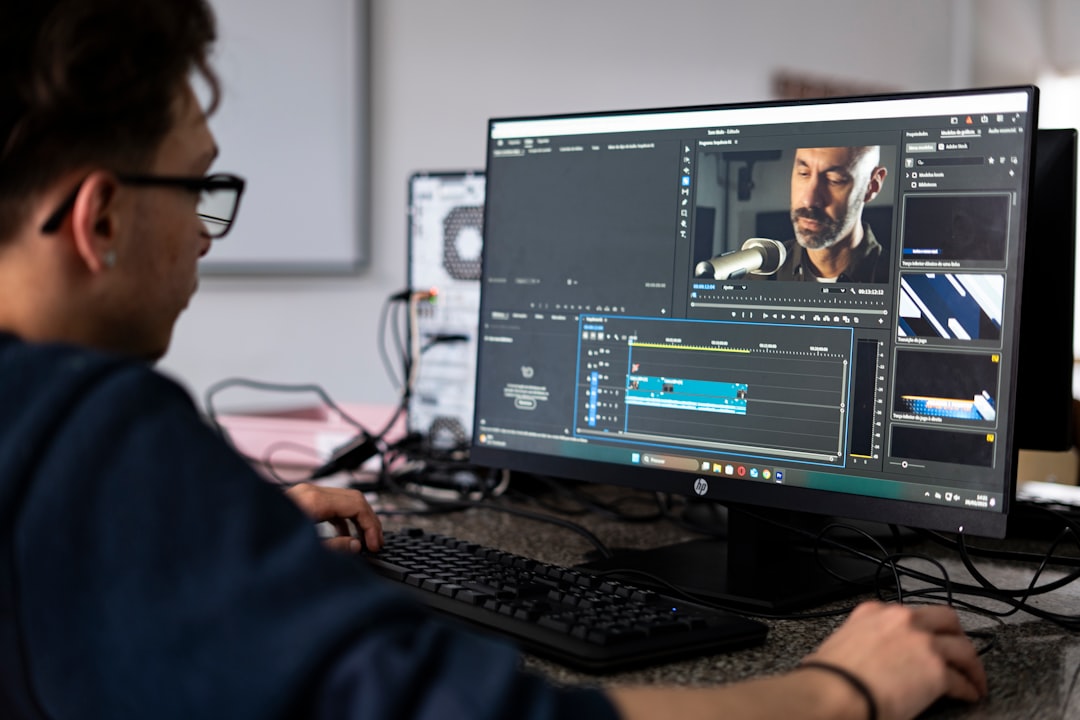
Best AI Tools for Editing Talking-Head Videos Fast
Talking-head videos are one of the highest-ROI content formats for small business owners in 2026. You don’t need a crew, a studio, or a script — just a phone, decent lighting, and something useful to say. The problem has never been recording the video. It’s everything that happens after: trimming dead air, adding captions, cutting the ums, exporting for three different platforms, and somehow turning one 10-minute recording into a week’s worth of content.
That’s exactly where AI tools have changed the game. What used to take two to three hours of manual editing now takes 20 minutes — if you’re using the right tools. Here’s a practical comparison of what actually works for small business owners who don’t have a video editor on staff.
Why Talking-Head Videos Need a Different Editing Approach
Talking-head content has a specific set of editing challenges that don’t apply to other video types:
- Filler words — ums, uhs, “you know,” and repeated false starts that kill credibility on camera
- Dead air — pauses between thoughts that drag the pacing and lose viewers
- Caption sync — 85% of social video is watched on mute; uncaptioned videos get skipped
- Repurposing — a 10-minute video contains multiple short clips worth posting separately, but cutting them manually is time-consuming
- Background noise — recorded in an imperfect environment, talking-head audio often needs cleanup before it sounds professional
Traditional video editing software addresses none of these automatically. AI-powered tools address most of them in minutes.
Descript: The Foundation of Any Talking-Head Video Workflow
If you’re only going to use one tool for talking-head video editing, Descript is it. The core concept is simple but genuinely transformative: Descript transcribes your video and then lets you edit the footage by editing the transcript like a document.
Delete a sentence in the transcript — the corresponding video clip disappears. Highlight a paragraph and cut it — gone from the final export. For talking-head videos where the structure follows speech, this is the fastest editing method available.
What Descript Does Well
- Filler word removal: One click removes every “um,” “uh,” and “like” from the entire recording. The AI identifies them automatically — you just confirm or review before deleting.
- Studio Sound: Descript’s audio enhancement strips background noise, balances levels, and makes recordings from a laptop mic sound significantly cleaner. It’s not a replacement for a good mic, but it’s a meaningful upgrade for free.
- Captions: Auto-generates captions with word-level timing accuracy. You can style them, correct errors, and export them burned into the video or as a separate SRT file.
- Screen recordings: If your talking-head videos include screen share demos, Descript handles mixed recording types in one timeline.
- Overdub: Descript’s AI voice cloning feature lets you re-record specific words by typing them — useful when you stumble on a product name or need to fix a fact post-recording without re-shooting.
Descript’s Limitations
Descript isn’t a full-featured social video tool. It won’t automatically identify your best clips, generate short-form versions with B-roll, or optimize aspect ratios for TikTok vs. LinkedIn simultaneously. For those workflows, you need a separate tool alongside it.
The free plan is limited to one hour of transcription per month — useful for testing, not for regular production. The Creator plan at $12/month (billed annually) gives you 10 hours of transcription and is the realistic entry point for regular use.
Otter.ai: Transcription and Content Extraction
Otter.ai’s primary use case is meeting transcription, but it’s genuinely useful in a talking-head video workflow as a transcription-first tool when you want to extract content before editing the video itself.
The workflow: upload your video or audio to Otter, get a transcript, then use that transcript to plan your edit — identifying the best segments, pulling quotes for captions, and generating written content from the same recording. If you’re already using AI to create client recap emails or internal notes from recordings, Otter fits naturally into the same system.
Otter’s AI Chat feature lets you ask questions about the transcript — “what’s the clearest explanation I gave of X?” — which is useful for identifying the most quotable segments for short-form clips. It’s not a video editor, but it’s a strong companion tool for content planning before you open Descript.
CapCut: Captions and Short-Form Repurposing
CapCut has become the default tool for adding animated captions to short-form video — and for good reason. Its auto-caption feature is fast, accurate, and produces the word-highlight style captions that perform well on TikTok, Instagram Reels, and YouTube Shorts.
For small business owners whose talking-head videos are primarily LinkedIn posts, Instagram Reels, or YouTube content, CapCut handles the social-specific formatting that Descript doesn’t prioritize: vertical crop, animated text overlays, aspect ratio conversion, and trending caption styles.
The free version is surprisingly capable. Most basic editing and captioning workflows don’t require the paid tier.
Opus Clip: Automated Short-Form Clip Generation
If you’re recording 10–20 minute talking-head videos and want to extract short clips without manually watching the whole thing, Opus Clip does this automatically. Upload a long video, and Opus identifies the most engaging segments — typically 30–90 seconds — based on hook strength, topic clarity, and pacing.
The output isn’t always perfect, but it’s a strong starting point. Instead of spending an hour manually scrubbing through footage to find three clips worth posting, you spend 10 minutes reviewing what Opus surfaced and picking the best two.
Opus also adds captions, reformats for vertical video, and scores each clip by estimated engagement potential. For small business owners who record one long video per week and want to get a week’s worth of social content from it, this is the closest thing to a set-it-and-run tool available.
How These Tools Compare Side by Side
| Tool | Best For | Filler Removal | Captions | Clip Generation | Starting Price |
|---|---|---|---|---|---|
| Descript | Full editing workflow | ✅ Automatic | ✅ Accurate | ❌ Manual only | Free / $12/mo |
| Otter.ai | Transcription + content extraction | ❌ | ❌ | ❌ | Free / $10/mo |
| CapCut | Social captions + formatting | ❌ | ✅ Animated styles | ⚠️ Basic | Free |
| Opus Clip | Automated short-form clip extraction | ❌ | ✅ Auto-adds | ✅ AI-scored | Free / $15/mo |
Turning One Video Into a Full Content Week
The real ROI of these tools isn’t just faster editing — it’s content multiplication. One 15-minute talking-head video, processed through this stack, can produce:
- 1 long-form YouTube video (edited in Descript, captions added)
- 3–5 short clips for Instagram Reels or TikTok (extracted via Opus, formatted in CapCut)
- A full transcript usable as a blog post draft or LinkedIn article (from Otter or Descript)
- Pull quotes for Twitter/X threads or LinkedIn carousels
- A summary paragraph for email newsletter content
That’s a week of content from a single 15-minute recording session. If you’re already using AI writing tools like Jasper or Copy.ai to draft written content, your video transcripts become one of the richest raw material sources you have — feed the transcript into a writing tool and ask it to turn the key points into a newsletter, a blog post, or a social caption series.
This is how small business owners who post consistently actually keep up without a content team: they record once and distribute many times, with AI handling the conversion work between formats.
Adding AI Writing to the Mix
Video editing tools handle the visual and audio side. Once you have your transcript, AI writing tools close the loop on the text-based content that comes out of the same recording.
Jasper and Copy.ai are both strong options for turning a raw transcript into polished written content — a blog post, a LinkedIn article, an email to your list. Feed the transcript in with a prompt like “Turn this into a 500-word LinkedIn article focused on the main insight from the first five minutes” and you’ll have a usable draft in under two minutes.
Writesonic works similarly and includes a blog post generator that’s well-suited to taking structured talking points (from a video transcript) and expanding them into SEO-ready content. If you’re already using AI to create video content for your business, adding a writing tool to the post-production workflow is a natural extension.
What to Prioritize If You’re Starting From Zero
If you’ve never used AI tools for video editing, the learning curve can feel overwhelming. Here’s the order that makes sense for most small business owners:
- Start with Descript’s free plan. Record a recent talking-head video, import it, and use filler word removal. The time savings will be immediately obvious.
- Add captions using CapCut if you’re publishing to social platforms. It’s free and takes under 10 minutes per clip.
- Try Otter.ai’s free plan to see what content you can extract from transcripts — pull quotes, blog post material, social captions.
- Add Opus Clip once you’re regularly recording longer videos and want to automate clip selection instead of doing it manually.
You don’t need all four tools on day one. Descript alone will save you more time than any other single investment in your content workflow.
- Descript is the best AI tool for editing talking-head videos end-to-end — transcription, filler removal, captions, and audio cleanup in one platform.
- Otter.ai pairs well with Descript for content extraction: turn your video transcript into written content, newsletter material, and social captions.
- CapCut handles social-specific formatting (animated captions, vertical crop) that Descript doesn’t prioritize.
- Opus Clip automates short-form clip extraction from long recordings — useful once you’re producing video consistently.
- One 15-minute talking-head video, processed through these tools, can generate a full week of multi-platform content.
Frequently Asked Questions
What is the best AI tool for editing talking-head videos?
Descript is the best all-around option for small business owners. It handles transcription, filler word removal, text-based editing, captions, and audio enhancement in one platform. For social-specific formatting and clip extraction, pair it with CapCut and Opus Clip.
Can AI tools remove filler words from my videos automatically?
Yes — Descript’s filler word removal is the most reliable option available. After transcribing your video, it identifies every “um,” “uh,” and “like” in the transcript and lets you remove them all with one click. You can review before deleting, so you stay in control of what’s cut.
How do I add captions to talking-head videos for free?
CapCut’s free plan generates accurate auto-captions with animated word-highlight styles. Descript’s free tier also supports captions. For most small business owners, CapCut is the faster choice for social-format captions specifically.
Is Descript worth paying for?
Yes, if you’re recording talking-head videos more than once a week. The Creator plan at $12/month gives you 10 hours of transcription per month and unlocks Studio Sound audio enhancement and full filler word removal. Most small business owners recover that cost in the first hour they save on editing.
How do I turn a talking-head video into written content?
Export your transcript from Descript or Otter.ai, then feed it into an AI writing tool like Jasper, Copy.ai, or Writesonic with a specific prompt (e.g., “Turn this into a 400-word LinkedIn article”). The transcript gives the AI enough context to produce specific, useful content rather than generic filler. This approach works particularly well if you already use AI writing tools for your business content — video transcripts are one of the best raw inputs you can give them.





3 Comments